
Calab
From voice to integrations
Voice and video
Join a room and start talking
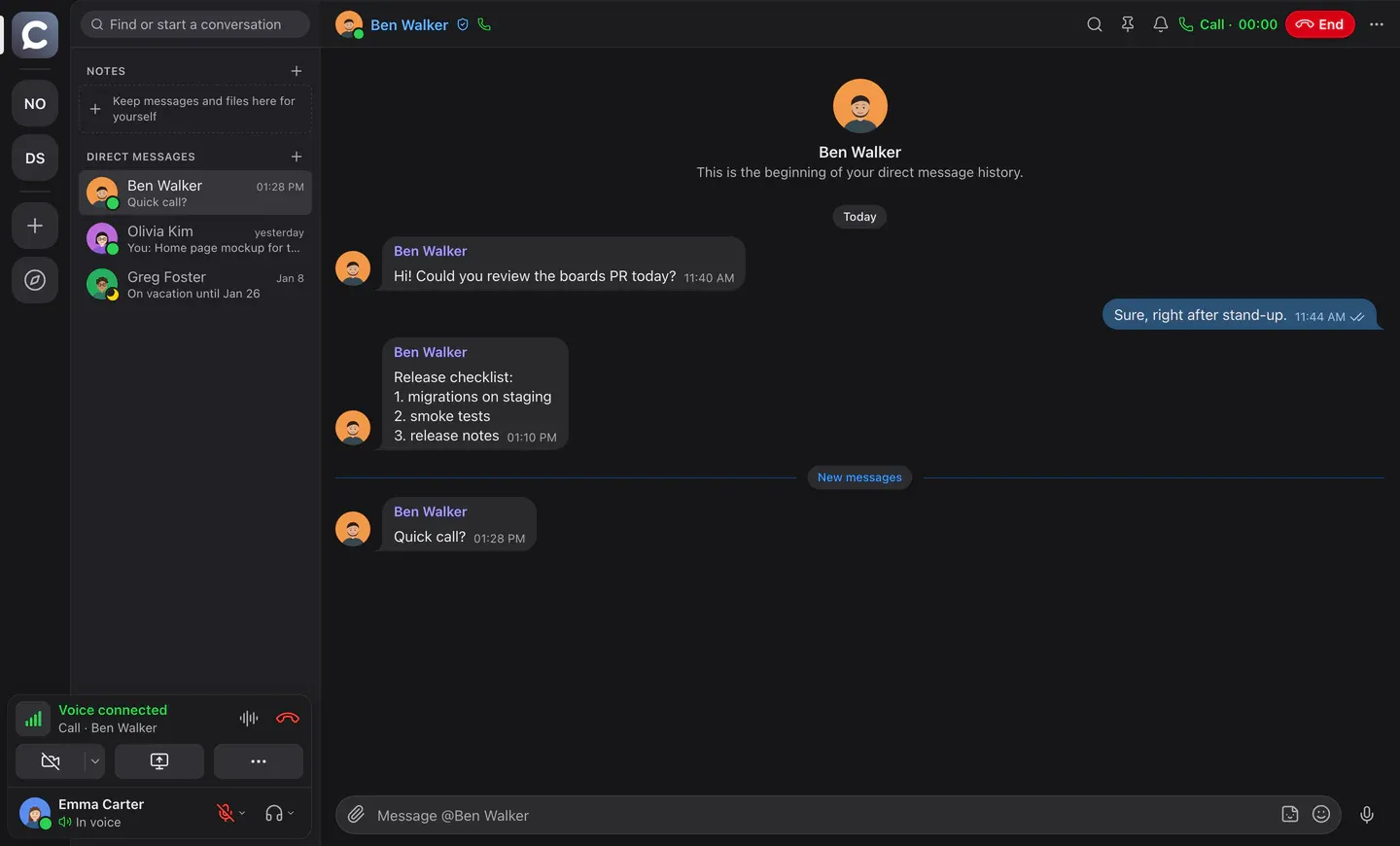
Voice rooms are always open: one click and you’re in the conversation. Cameras, screen sharing and one-on-one calls live right there — no separate links or apps.
- RNNoise noise suppression and AEC3 echo cancellation — clean even without headphones
- Push-to-talk and voice activation, even in the background
- Screen sharing in AV1 or hardware H.264, with a pointer and drawing on top
- Camera with background blur or a picture
- Meeting recordings with a transcript and summary right in the chat
Sound quality
Voice without compromise
A room sets its own audio quality, all the way up to “Excellent”: Opus at 64 kbps, full band up to 20 kHz. You hear the timbre and the detail of a voice, and with a good microphone the difference is obvious.
- Four room levels: from 8 kbps for a poor connection to 64 kbps in full band
- Everyone can set a personal ceiling to save data when the connection is worse
- RNNoise noise suppression is optional; while it is off, Chromium’s built-in suppression works
- Screen-share sound is sent unprocessed: music and demos sound as they are, and the other participants’ voices stay out of the stream (macOS 14.2+, Windows 11)
- In pauses a voice barely uses the link: 0.1 kbps while the microphone is silent
For musicians
Musician mode
The sound quality is very high, and noise suppression can be switched off completely, so you can play an instrument or sing live without losing quality. Echo cancellation, noise suppression and auto gain are off, and the microphone goes out in the Opus music profile: 128 kbps mono or 192 kbps stereo, with error correction and without silence cutting. Headphones are required, and the app warns you about it. Others see a guitar icon next to your name. Available on Team and above.
Room quality levels
The wider the band, the more overtones the listener hears.
- Low8 kbps
Bandwidth: up to 4 kHz
- Normal16 kbps
Bandwidth: up to 8 kHz
- Good32 kbps
Bandwidth: up to 12 kHz
- Excellent64 kbps
Bandwidth: up to 20 kHz
Phone calls
Call any number — straight from the room
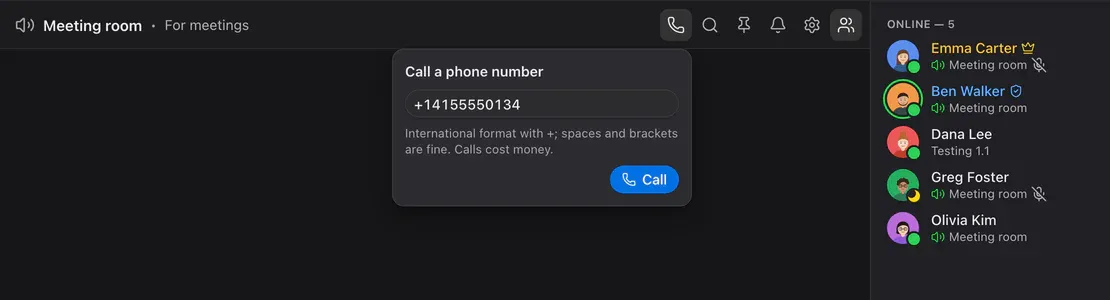
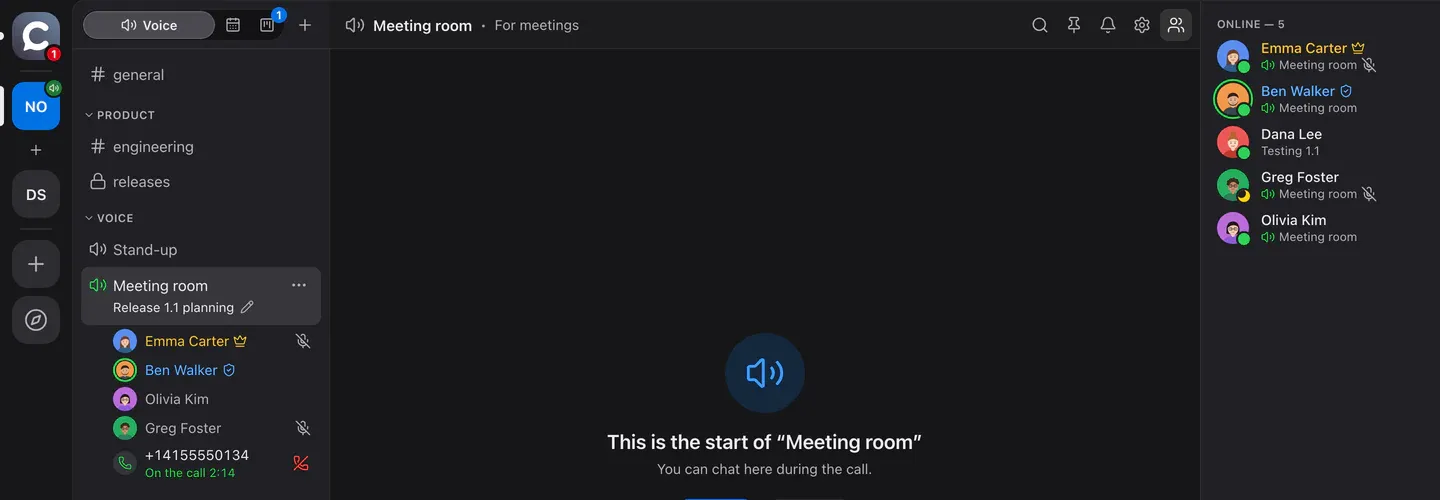
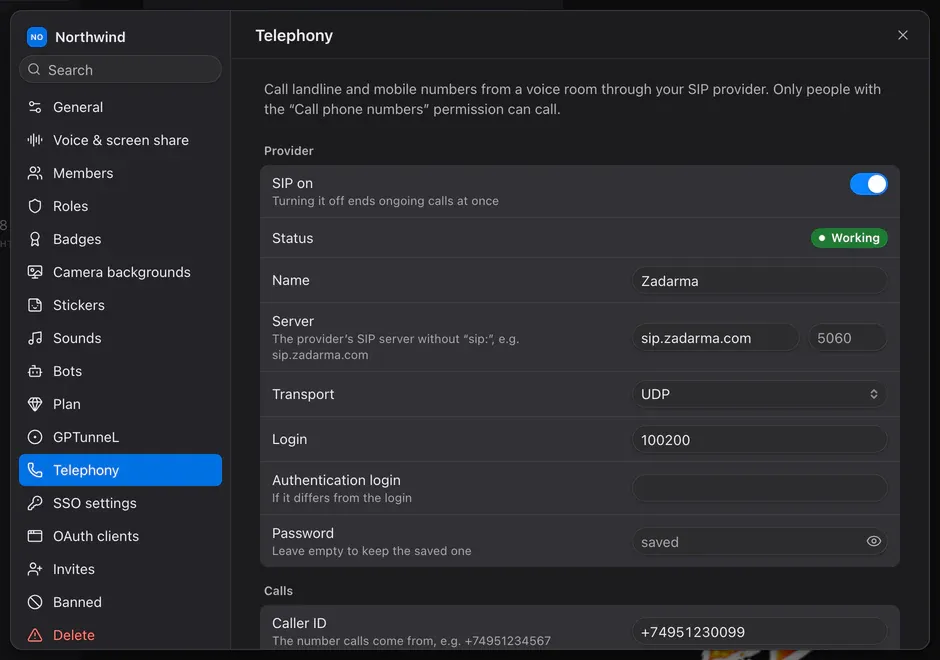
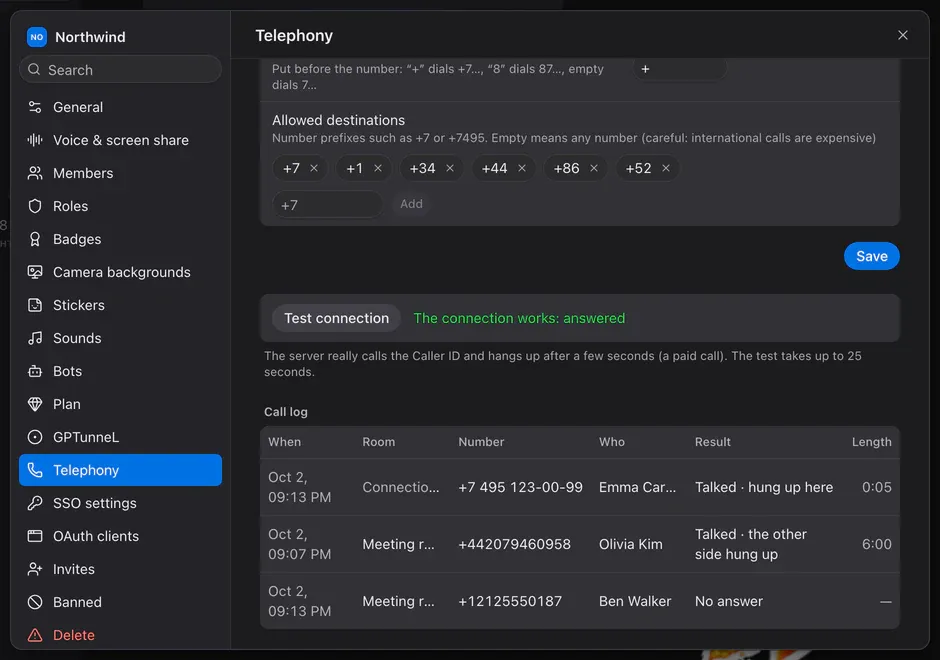
Connect your own SIP provider and dial a landline or mobile number from a voice room. The callee joins the room as a participant with a phone icon, and everyone hears them.
- The status is visible to everyone: “Dialling… → Ringing… → On the call 02:14”
- “Call a number” sits in the room header and in the “…” menu; paste the number as it is, with spaces and brackets
- The caller and moderators can hang up; only the caller hears the ringback
- Provider settings: server, port, login, Caller ID, allowed destinations
- “Test connection” places a trial call to your Caller ID; the call log shows who called, when, where and how it ended
- The “Place calls” permission is given to nobody by default; one call per room, up to 20 an hour per workspace
Calls are billed by your SIP provider.
Chat
Chat like Telegram
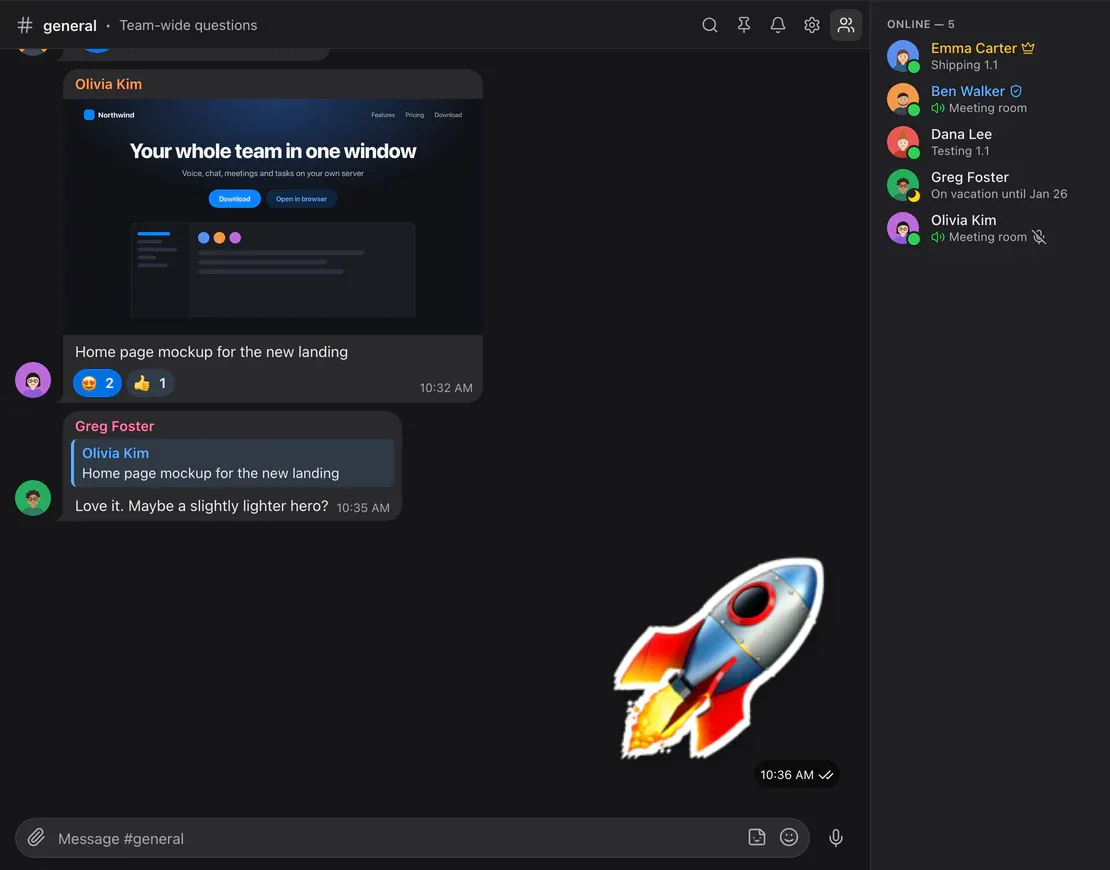
Every room has its own chat: replies, reactions, forwarding, stickers, voice messages, files with previews, pins and search. Read ticks, just as you’re used to.
- Forward to several chats at once
- Workspace sticker packs
- Voice messages, music and video with a built-in player
- Mentions, per-room notifications, workspace search
Calendar and meetings
Meetings where the conversation is
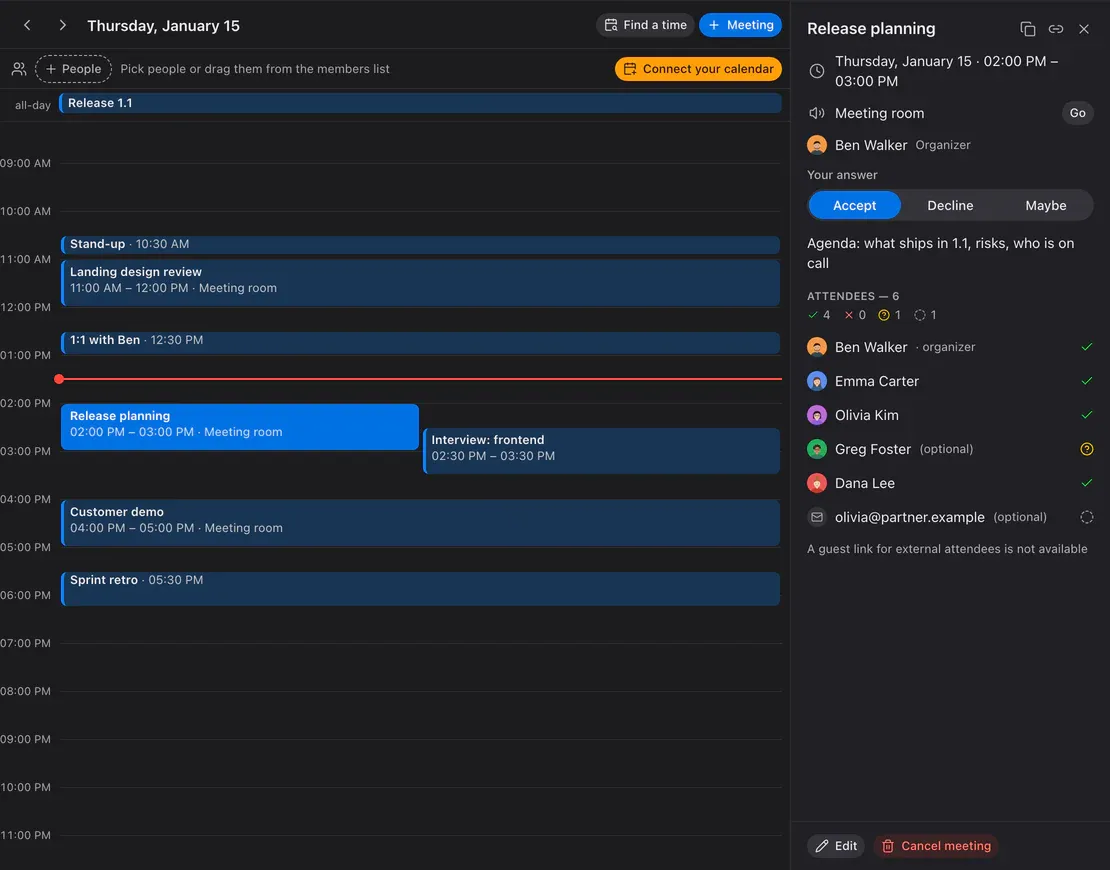
The calendar is built into the app: your day of meetings, invitations, attendees’ answers, the meeting room with a “Go” button and reminders 15 minutes before.
.ics invitations
An email with invite.ics adds the meeting to Apple, Google, Outlook or Yandex calendars. External attendees answer by link and join as guests.
Find a time
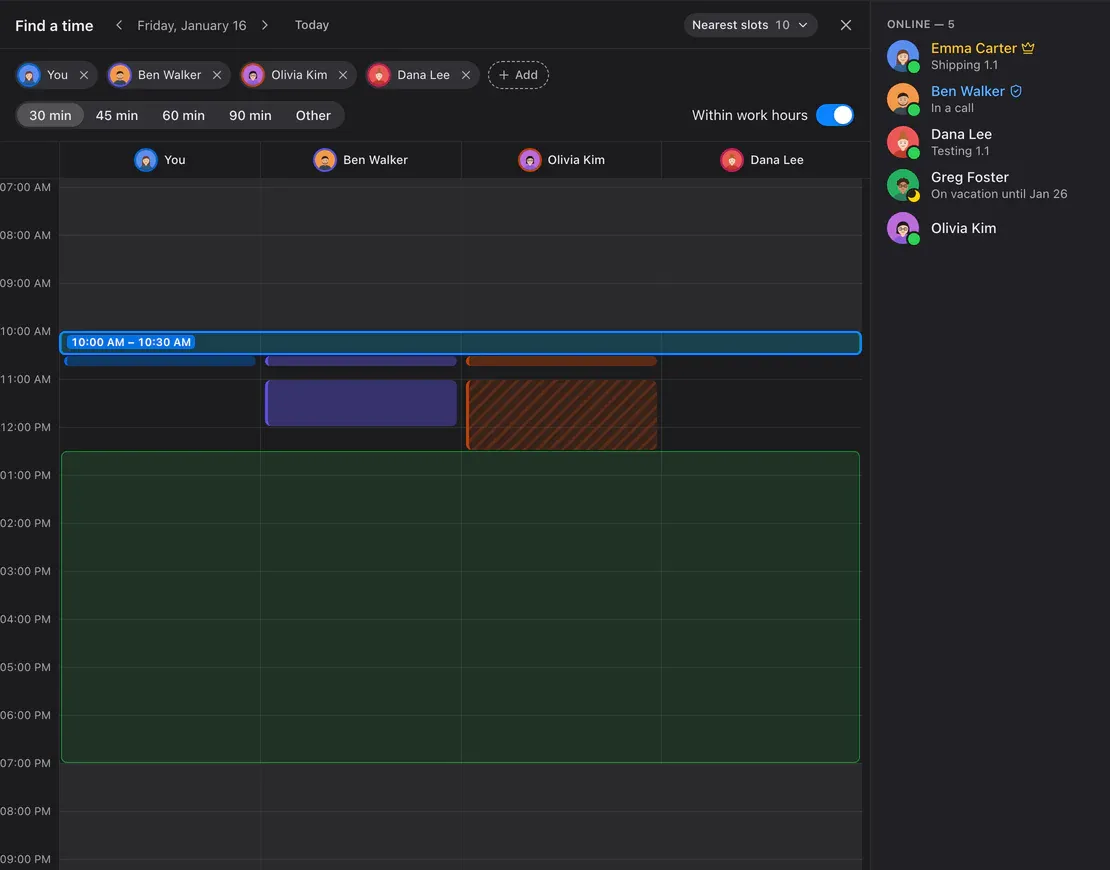
Colleagues’ busy columns, shared free windows and the nearest slots — one click creates the meeting.
CalDAV
Connect Yandex, iCloud, Fastmail or Nextcloud: your busy time counts, and Calab meetings show up there by themselves.
Task boards
Tasks next to the conversation
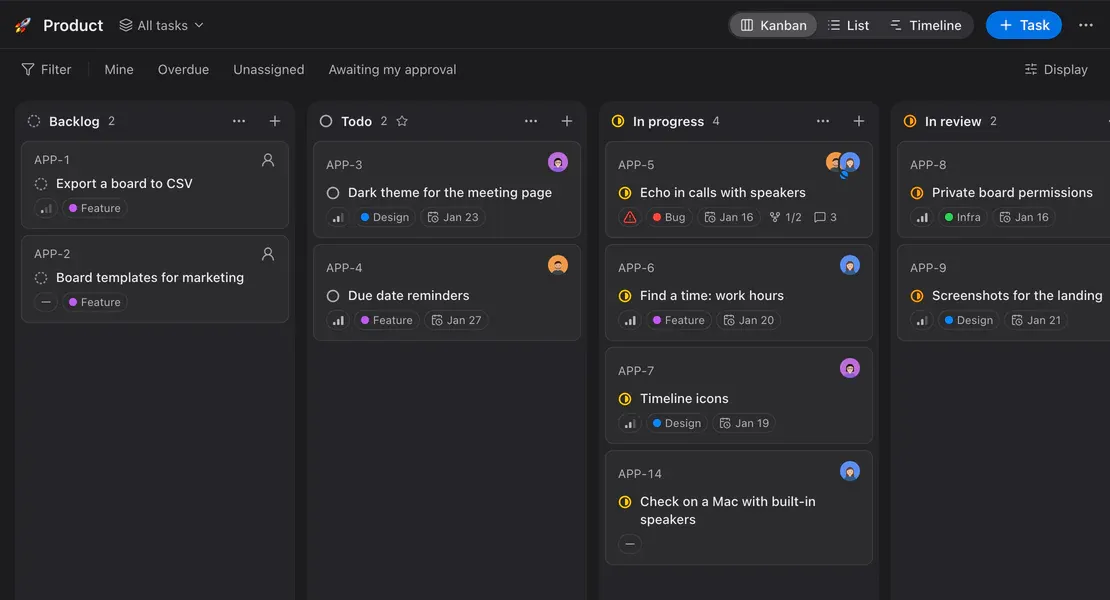
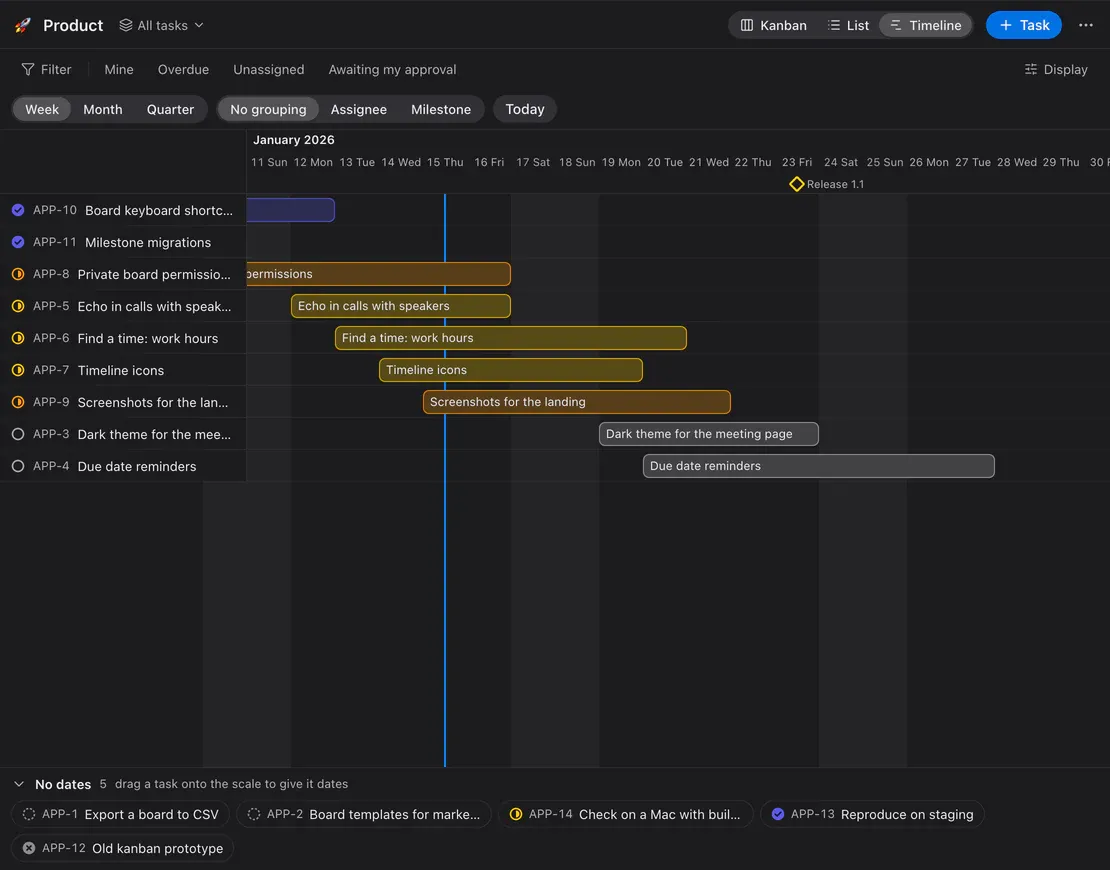
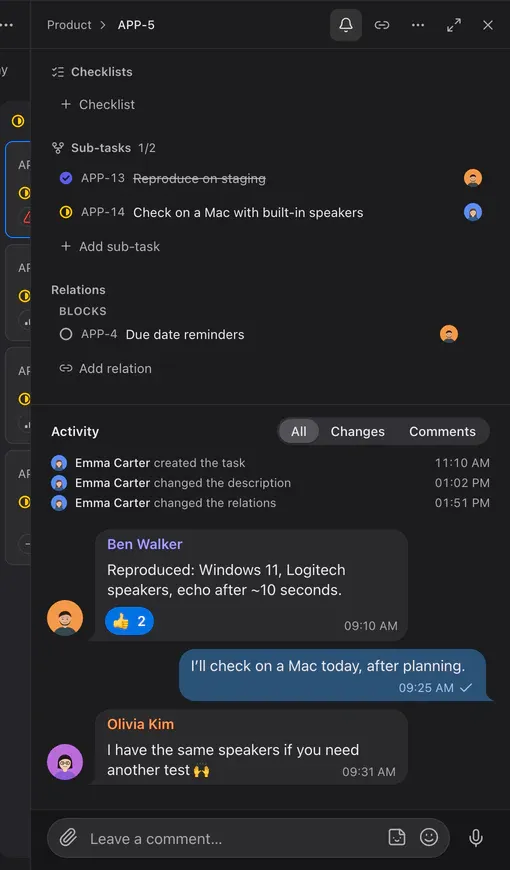
Kanban, list and timeline in the spirit of Linear — without another service. Create a task from any message; a link to it unfolds into a card in the chat.
- Statuses, priorities, labels, milestones and due dates
- Several assignees, subtasks and relations
- Comments like chat: reactions, stickers, voice messages
- Filters, saved views and keyboard shortcuts
Free has 3 boards, Team 30, Business 50 and Enterprise has no limit.
Notes
Private shelves for everything important
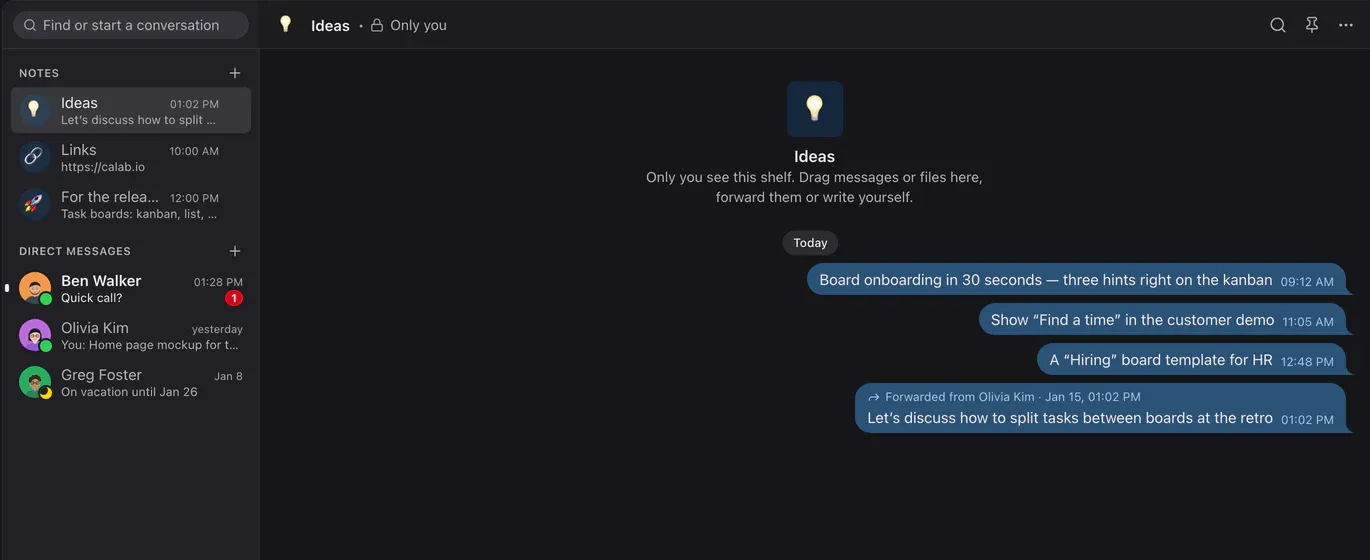
Up to 20 shelves with your own names and emoji — like Saved Messages in Telegram, only several. Only you can see a shelf.
- Drag a message onto a shelf or forward it
- Drop files from Finder or Explorer straight onto a shelf
- Pins and search, as in any chat
Guests
Guests without sign-up — with your approval
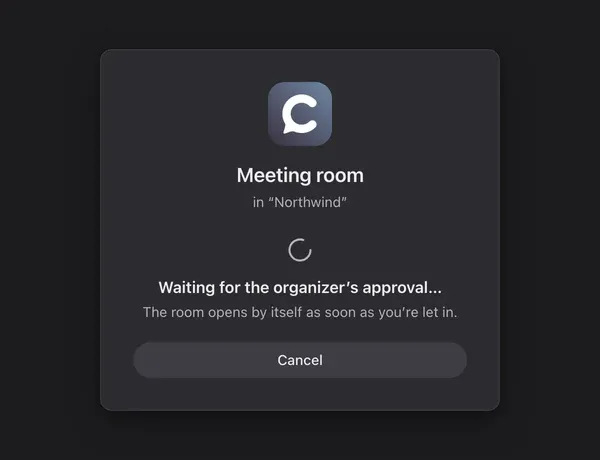
A guest link leads straight into the room: the guest types a name and joins the conversation. Want control? Turn on approval: the organizer sees “asks to join” and clicks “Let in”.
- A guest sees only their room
- Approval per room or per link
- A sound and a waiting counter for the organizer
Web apps
Your services in the same window as the call
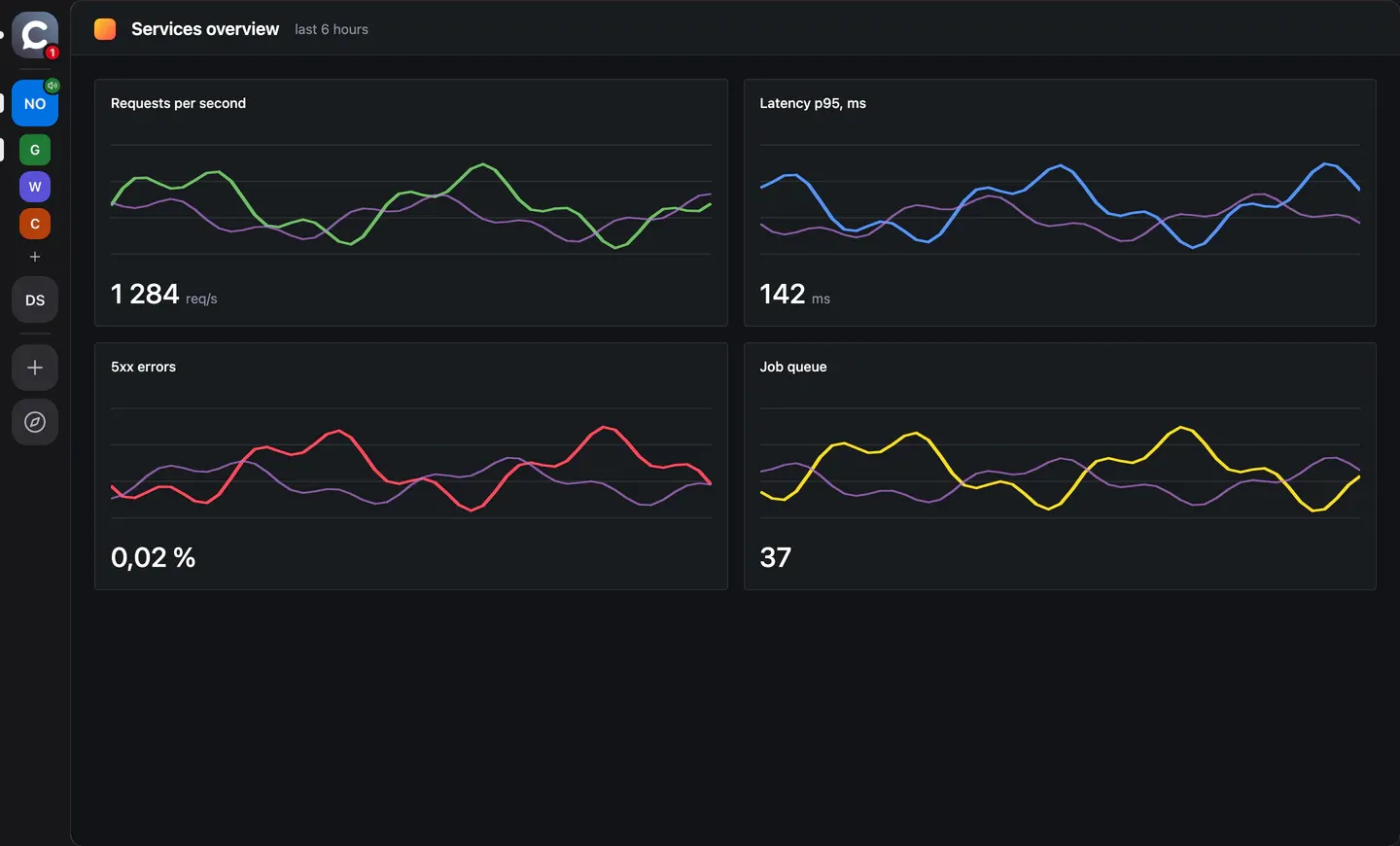
An admin pins site shortcuts to the left rail — Grafana, the wiki, the CRM. One click opens the site inside Calab, full window, and the call keeps going.
- A shortcut is a picture, a name and an address; up to 20 apps per workspace
- The call is not interrupted: the island with your microphone stays at the bottom
- Site logins are kept separately for each app and never mix with Calab
- Camera and microphone for a site — only with your permission
- Drag to reorder; right-click to edit, open in the browser, reload or delete
- Everyone except guests sees them; people with the integrations permission add and change them
Bots and SDK
A bot is a participant like any other
A bot uses the same API as the app and sees exactly what its roles allow. Bot API v2 covers almost everything a person can do.
- Reads and writes the chats it can see and answers /commands
- Works with tasks: creates, edits, comments
- Voice through LiveKit: hears everyone and speaks
- Calendar: creates meetings, checks free/busy, finds a time
- Member profiles, renaming, invitations and badges
- Starts meeting recording
- Events over WebSocket or webhook, buttons under messages, a TypeScript SDK
import { Bot } from '@calaba/bot-sdk';const bot = new Bot(process.env.BOT_TOKEN, { server: 'https://app.calab.io',});await bot.commands([{ name: 'standup', description: 'Start' }]);// "/standup" → a message with a buttonbot.on('command', (c) => bot.send(c.message.roomId, { text: 'Stand-up time. Record it?', inlineKeyboard: { rows: [{ buttons: [ { id: 'rec', label: 'Record', data: 'standup' }, ] }] }, }),);// pressed → start the meeting recordingbot.on('callback', (cb) => { if (cb.buttonId === 'rec') bot.recording.start(cb.roomId);});await bot.start();Self-hosted and secure
Your server, your data
Calab installs on your Linux server with one command and depends on no external services.
Step 1. Set up the server
A Linux host with Docker and a domain. One command and it’s running within a minute; Let’s Encrypt certificates are issued automatically.
infra/docker/deploy.shStep 2. Install the app
macOS, Windows or Linux. Or just open Calab in your browser — nothing to install.
Step 3. Invite your team
Send an invite link. Guests joining a single meeting don’t need an account.
Encrypted in transit
The API and signaling use TLS; voice and video use DTLS-SRTP.
Your data stays yours
Messages, files and recordings are stored only on your server.
Works behind a VPN
UDP blocked? TURN/TLS over 443 — to the network it’s ordinary HTTPS.
Rights for everything
Roles and per-room and per-board rights are checked by the server.
Performance
Light — and measured
We measure CPU on a real machine and publish the numbers, including the ones we are not happy with.
Without a call
Average load, % of one core: Calab and Discord on the same Mac, back to back, in the same conditions.
Window visible
Calab
Discord
Window hidden
Calab
Discord
What we sped up
Voice, quiet room
RNNoise noise suppression runs on demand and sleeps in pauses.
before
15.0%after
6.9%Video, window hidden
A hidden window no longer decodes video.
before
17.5%after
7.0%Video under an open menu
Glass and blur are gone: materials are solid.
before
17.2%after
11.4%Recording indicator
It pulses three times and settles instead of blinking for hours.
before
59.1%after
11.7%macOS installer
Unused Chromium languages removed: −16.3 MB.
before
146.2 MBafter
130.0 MB
We did not measure Discord in a call, so we make no voice comparison.
Method. MacBook Air (Apple M4, 10 cores, 24 GB), macOS 27, Discord 0.0.413. CPU is the sum over all of the app’s processes (top, a sample every 5 s, 3 minutes, the first sample dropped), one run per scenario. “Before” and “after” are the same Calab before and after a change: for voice and video, release 0.5.1 and its bundle with the optimisations (the app.calab.ru stand, a fake microphone, an lk publisher); for the menu and the recording indicator, a build on a mock server and a local LiveKit; installer size from docs/18. Tool: tools/energy-bench.py, raw CSVs are in the repository. All measurements and conditions: docs/14-energy.md